Administration
An administrator manages the account's users, settings and plan. Everyone else sees the settings, but only an administrator can change them.
Users
Under User Management, an administrator sees everyone on the account: name, email, roles and status.
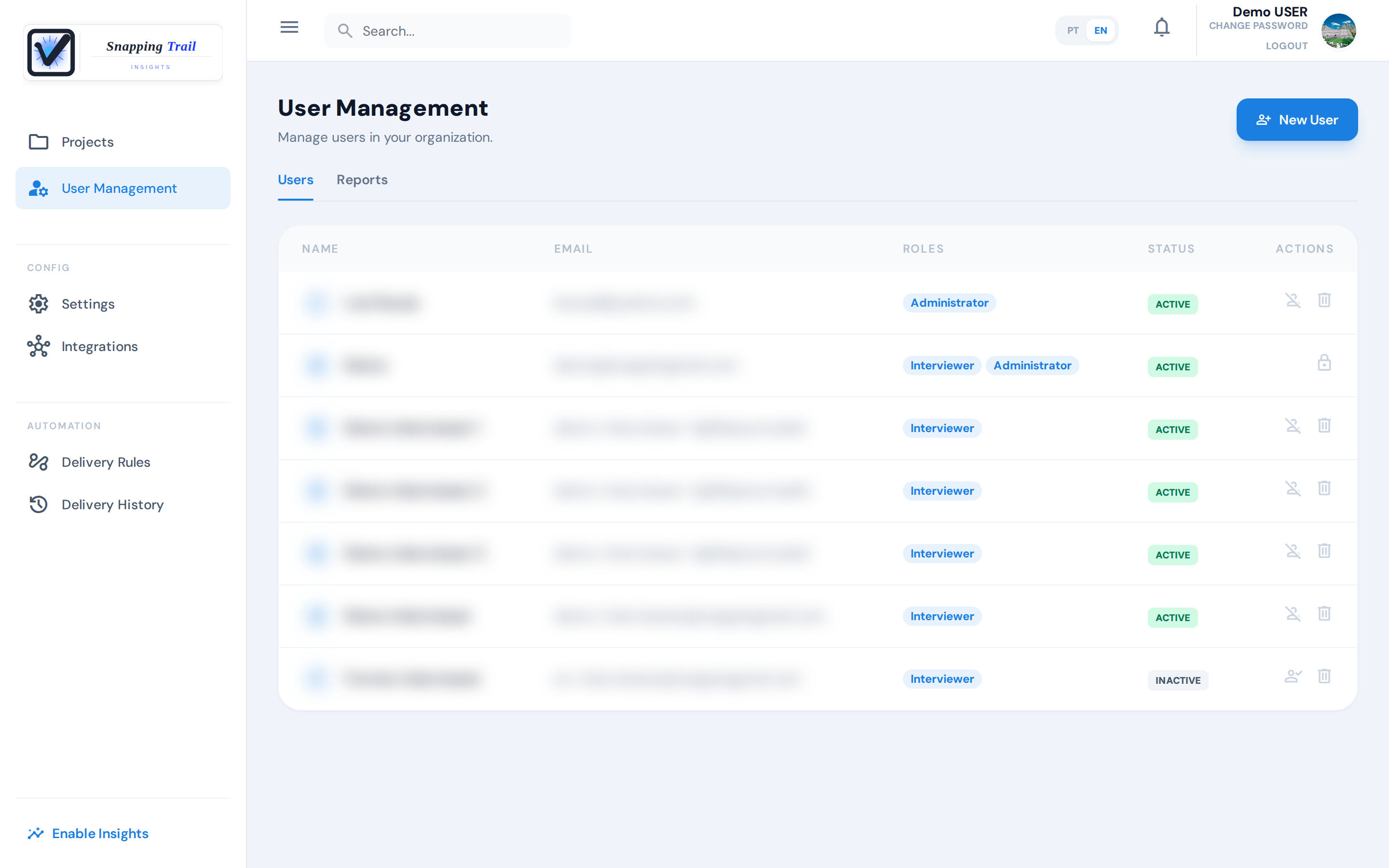
Add a user
- Click New User.
- Fill in the name and the email, choose the roles, and the status: Active or Inactive.
- Click Create User.
An active user, administrator or interviewer, gets an email with a temporary password and a link to activate the account. On the first sign-in, they confirm the email and choose their own password. A user created inactive cannot sign in, and gets that email when you reactivate them. An email already on the account, as a team member or a respondent, cannot be used again.
Roles
New User offers two roles, Administrator and Interviewer. A user can have both.
| Role | What they see and do |
|---|---|
| Administrator | Everything: users, Integrations, Delivery Rules, the plan, saving the settings, and creating and editing surveys |
| Interviewer | Only My Surveys: the projects they are a member of, where they start interviews of active surveys and see the interviews they made. The same in the Collect app |
Give an interviewer access to a project
Access is by project: an interviewer sees every survey of the projects they are a member of.
- Open the project and its User Management tab.
- Click Add Existing Member and choose the user, or Create New User to create one straight into the project.
The interviewer gets an email saying they were added. Remove from Project takes them out of it. An inactive user is not offered.
Deactivate and reactivate a user
Deactivate, on a user's row, asks first and then takes away their access: they can no longer sign in, and the sessions they have open are ended. Their interviews and the interviewer reports stay as they are. Reactivate gives the access back.
Interviews still waiting on a deactivated interviewer's phone stay in the Collect app, and go once the interviewer is reactivated and signs in again.
Delete a user
The bin on a user's row deletes them. The user loses access immediately, and it cannot be undone. A user who took part in an interview cannot be deleted: deactivate them instead, and their interviews stay on the account.
What is protected
- Nobody deletes or deactivates their own user.
- The account always keeps an active administrator: the only one left can be neither deleted nor deactivated.
On those rows, a padlock takes the place of the buttons, and says why.
Settings
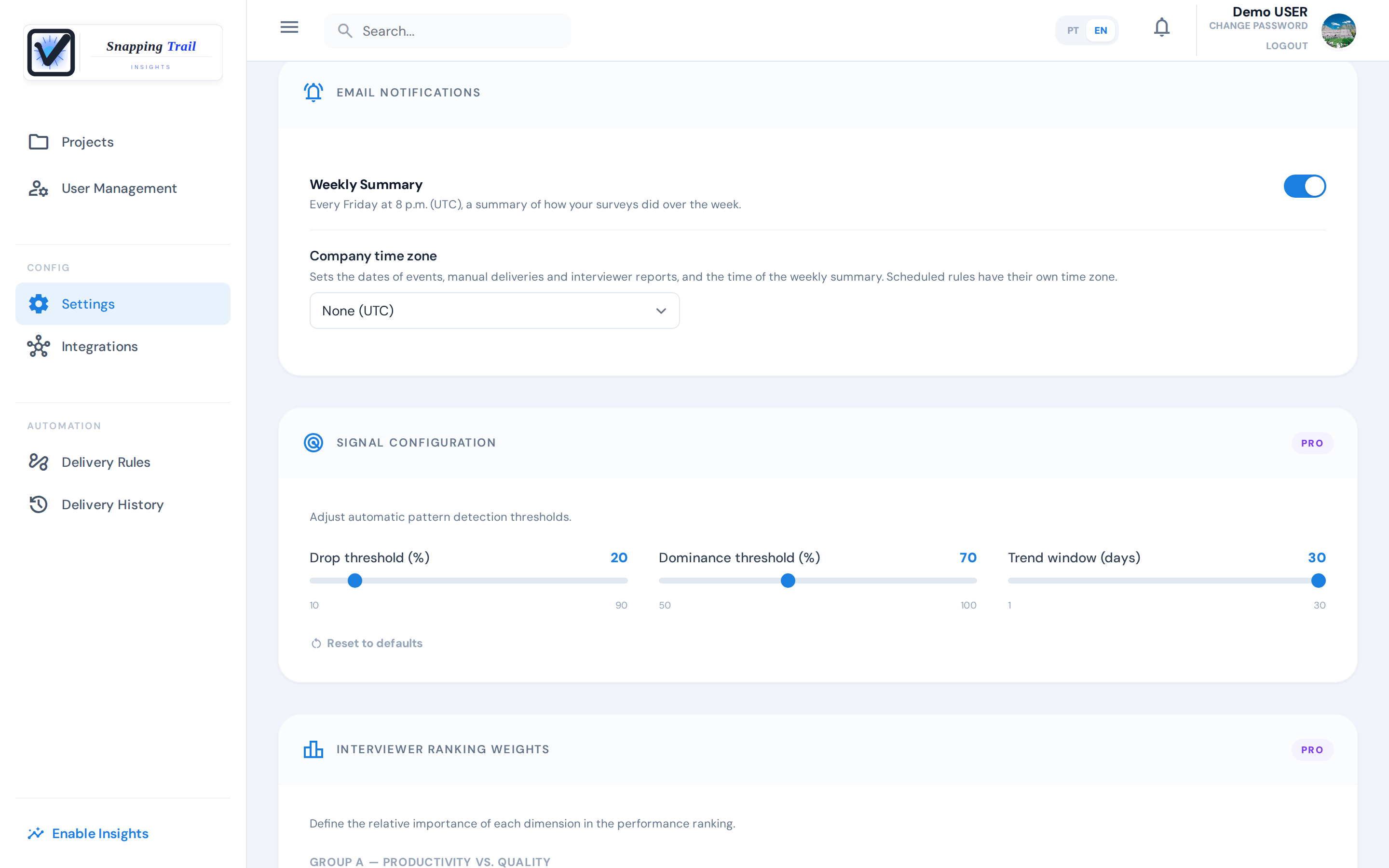
Under Settings, an administrator changes the account's preferences and clicks Save Settings. Discard drops what was not saved.
Company time zone
Company time zone sets the dates of events, manual deliveries and interviewer reports, and the time of the weekly summary. Without one (None (UTC)), those dates are in UTC. Scheduled delivery rules have their own time zone.
Weekly summary
With Weekly Summary on, every Friday at 8 p.m., in the company's time zone, the administrator who created the account gets an email with how the surveys did over the week. It is available on every plan, and it starts off.
Signal thresholds
Signal Configuration adjusts when the automatic signals appear. It needs the Pro plan; on the other plans, the defaults apply.
| Setting | What it changes | Range | Default |
|---|---|---|---|
| Drop threshold (%) | The drop rate from which a drop signal appears | 10% to 90% | 20% |
| Dominance threshold (%) | The share from which one answer counts as dominant | 50% to 100% | 70% |
| Trend window (days) | The length of the two periods compared: the last days against the same number before them | 1 to 30 days | 30 days |
Reset to defaults brings back the defaults.
Interviewer ranking weights
Interviewer Ranking Weights sets how much each part counts in the interviewers' ranking. It needs the Pro plan.
- Group A — Productivity vs. Quality: Productivity and Quality, half each by default.
- Group B — Quality Components: Completion, Low outliers and Text richness, a third each by default.
Each group's weights add up to 100%, and each weight is at least 5%.
Legal
Legal has the documents your company accepted: Terms of Service, Responsibility Terms and Privacy Policy. Each one shows its version and the date it has been in force since.
Billing and plan
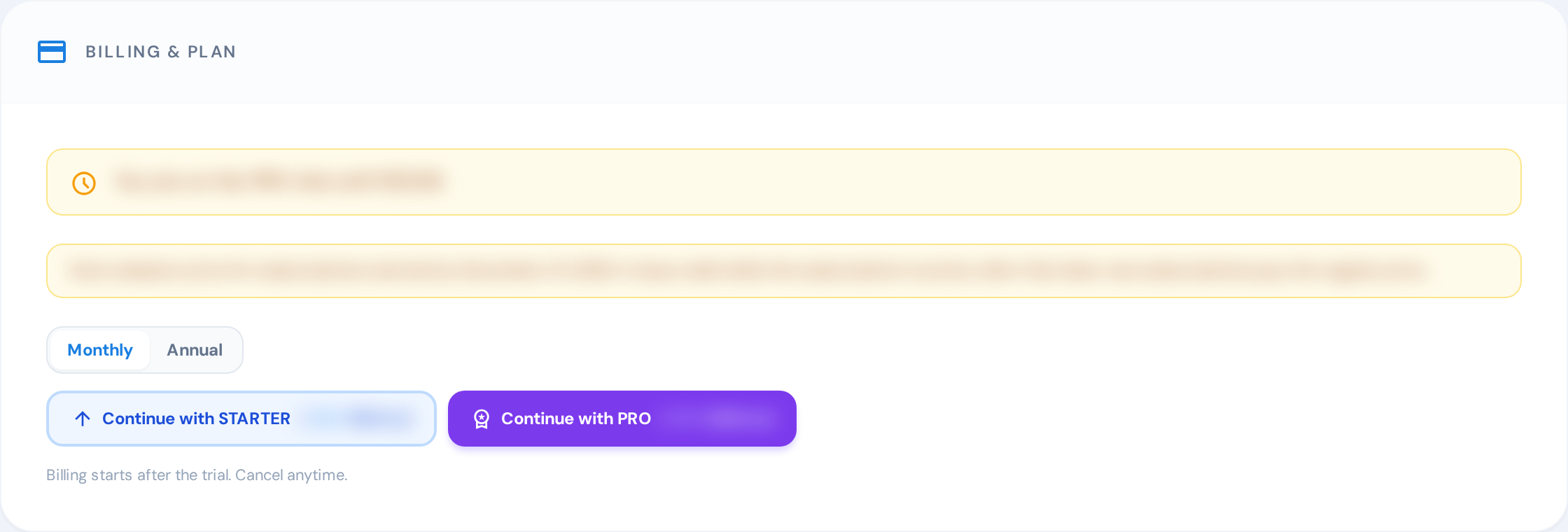
Billing & Plan, under Settings, shows the plan and its status. Only an administrator can change the plan; everyone else sees "To change the plan, contact your account administrator."
The trial
A new account starts with a 14-day trial with every Pro feature, and 200 completed interviews for the whole trial. In the last three days, Settings shows how many are left.
When the trial ends, you have 7 more days to choose a plan, still with Pro. After that, the account goes on with the Free plan's features and limits.
When a payment fails
When a renewal cannot be charged, the plan stays as it is for 7 days, and Billing & Plan says Payment failed. Update payment method opens the payment page. If nothing is paid by then, the account goes on with the Free plan.
Change or cancel the plan
- In the trial, or without a plan: Continue with Starter or Pro opens the payment page.
- With a plan: Switch to the other plan, or Cancel plan. A cancelled plan stays until the end of the period already paid, and Reactivate plan brings it back.
After moving to a smaller plan, the users, projects and active surveys you already have stay. Only adding one more over the plan's limit is refused: creating or reactivating a user, creating a project, activating a survey.
What each plan includes
| Free | Starter | Pro | |
|---|---|---|---|
| Completed interviews per month | 100 | 1,500 | 5,000 |
| Active users | 4 | 16 | Unlimited |
| Projects | 1 | Unlimited | Unlimited |
| Active surveys | 2 | 30 | Unlimited |
| Integrations | Google Sheets | Google Sheets, Slack, Notion and Webhook | Google Sheets, Slack, Notion and Webhook |
| Signal thresholds and ranking weights | — | — | ✓ |
| Rows per export | 500 | 10,000 | Unlimited |
| Watermark on exports | Yes | No | No |
Inactive users do not count toward the limit of active users. The full export of the account's history has no row limit and no watermark, on every plan.
Completed Interviews Usage shows how many interviews were completed in the period. Administrators get an email at 80% and at 100% of the plan's interviews. At 120%, collection by link and on the web stops until the next period. On a paid plan the period starts on the billing day; on Free, it is the calendar month.
Export the account's history
Customer History, under Settings, exports what the account has:
- PDF: the account's usage summary and the surveys' activity timeline.
- Need all responses? Full export →: the usage, the timeline and every interview's answers, in a file to download. The link expires after 48 hours; after that, generate a new one.
Close the account
To close the account, ask support.