Getting started
Snapping Trail helps you plan research, collect answers in the field or online, and see what the data says — which differences between groups are firm, which are only indications, and where people drop out.
This page takes you from creating your account to your first survey.
Create your account
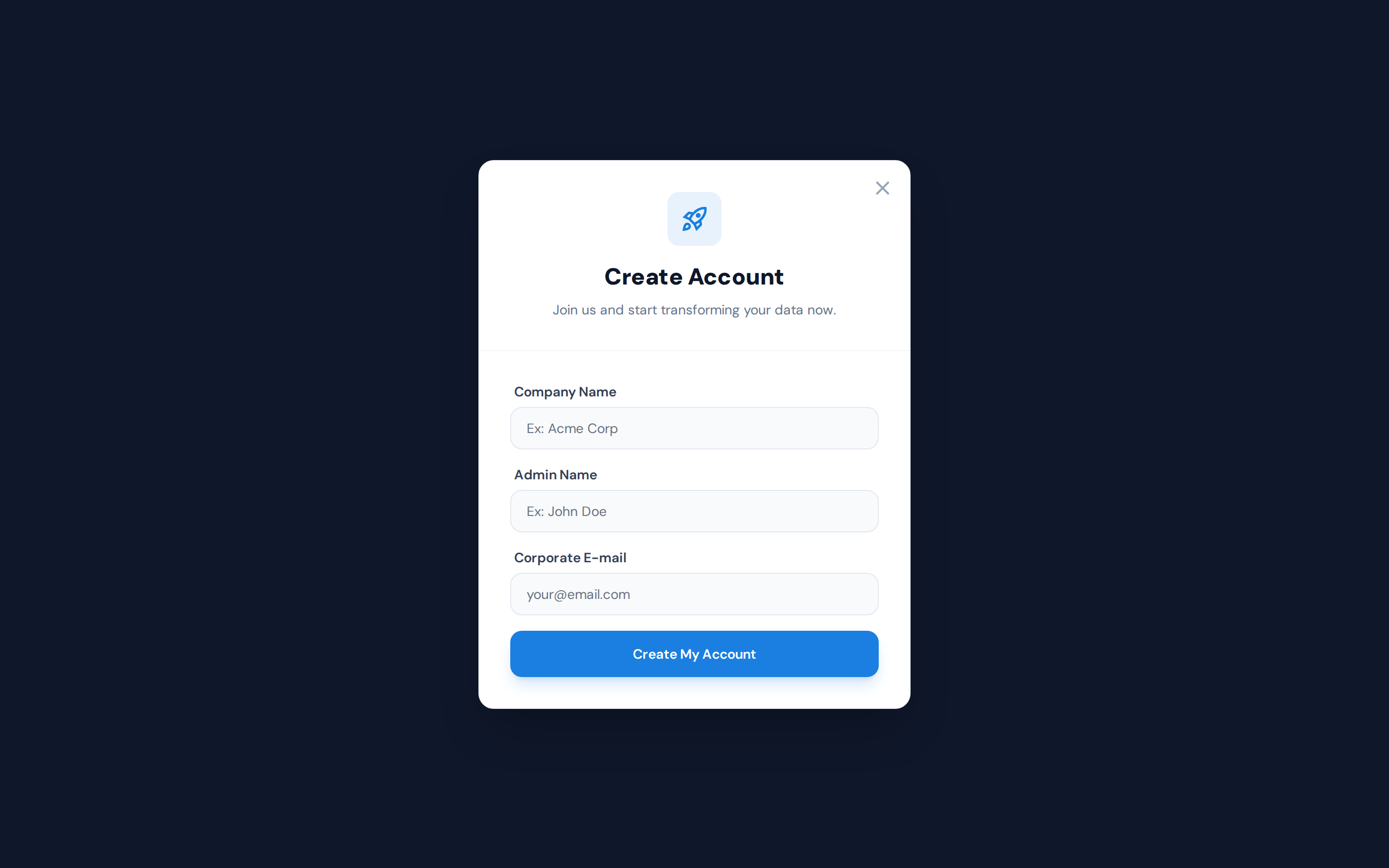
- On the Snapping Trail website, choose Create Account.
- Enter your company's name, your name and your work email.
- Open the activation email and set your password.
- Sign in at your company's address, shown in the welcome email (for example,
yourcompany.app.snappingtrail.com). Your teammates sign in at the same address.
On your first sign-in, you're asked to accept the Terms of Service and the Responsibility Terms, and to read the Privacy Policy. You can reread them at any time under Settings → Legal.
Your trial
Every new account starts with a 14-day trial with everything in the Pro plan. When the trial ends, choose a plan under Settings → Billing & Plan. If you don't, the account continues on the Free plan, and your data stays where it is.
| Free | Starter | Pro | |
|---|---|---|---|
| Users | 4 | 16 | Unlimited |
| Projects | 1 | Unlimited | Unlimited |
| Active surveys | 2 | 30 | Unlimited |
| Completed interviews per month | 100 | 1,500 | 5,000 |
| Offline collection with the Collect app | ✓ | ✓ | ✓ |
| Segment differences and trends | — | — | ✓ |
When you reach your monthly allowance, you're told by email at 80% and at 100%. Collection through the link and the web stops at 120%. Interviews from the Collect app are always accepted.
Who does what
- Administrators set up the account: users, integrations, delivery rules, the company's time zone and the subscription. They can also build and edit surveys.
- Interviewers collect answers, in the Collect app or on the web, and see only the surveys assigned to them.
Add people under User Management.
Find your way around
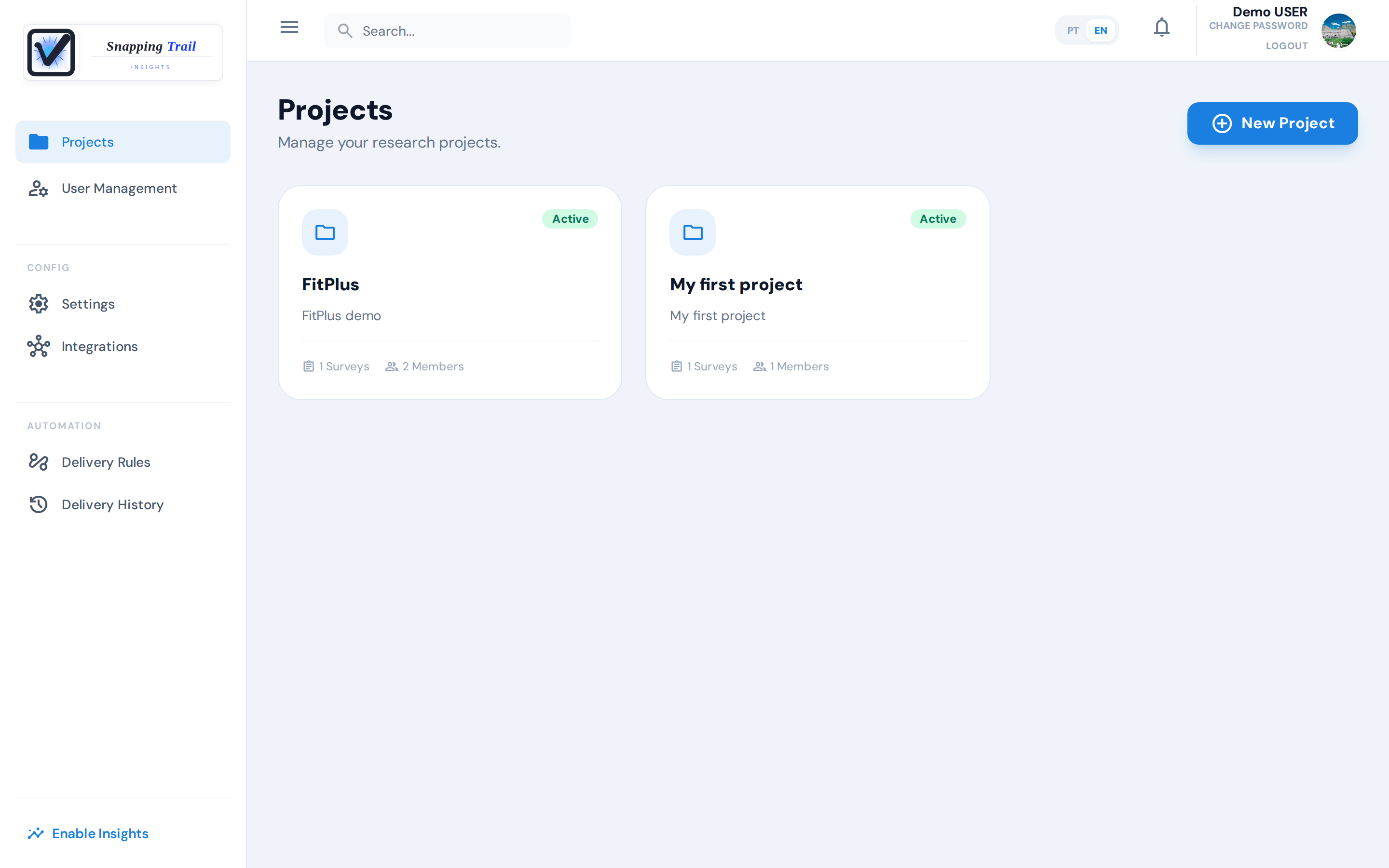
The menu on the left changes with your role. At the top, PT / EN switches the language.
Research objectives, which group surveys around a decision you need to make (see Results), appear when you turn on Enable Insights, at the bottom of the menu on the left, and disappear with Simple Mode. The Advanced badge at the top shows that mode is on.
Your account comes with a first project, My first project. You can rename it or create others.
Set your company's time zone
Under Settings, an administrator chooses the Company time zone. It sets the dates of events, manual deliveries and interviewer reports, and when the weekly summary is sent: every Friday at 8 p.m. Without one, dates are in UTC.