Collection
A survey takes answers only while it is Active. There are three ways to collect them:
| Way | Who answers | Best for |
|---|---|---|
| Link or QR code | The respondents themselves, on any phone or computer | Customers, employees, online audiences |
| Web collection | An interviewer, on a computer, asking the questions | Phone interviews, front desks |
| Collect app | An interviewer, on an Android phone, even offline | Field research, events, places without signal |
All three feed the same results.
Share a link or a QR code
- Open the survey and go to Share.
- Under Share via link, choose Create link. Only an active survey can have links.
- If you want, set Limit responses for this link (it cannot exceed the survey's own limit) and an Expiration date. Both are optional.
- Choose Copy link, or QR Code to Download PNG or Print it for posters, tables or receipts.
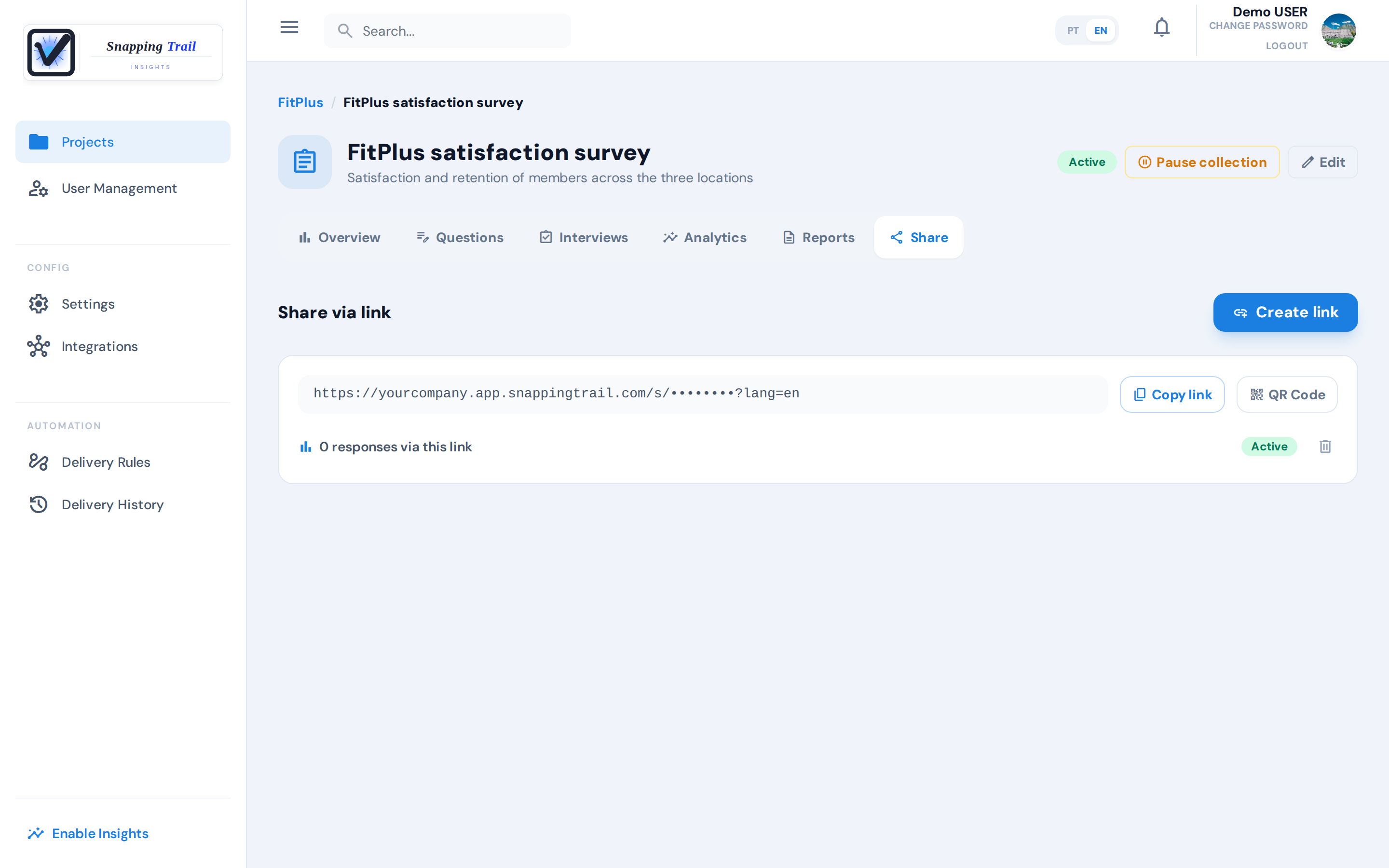
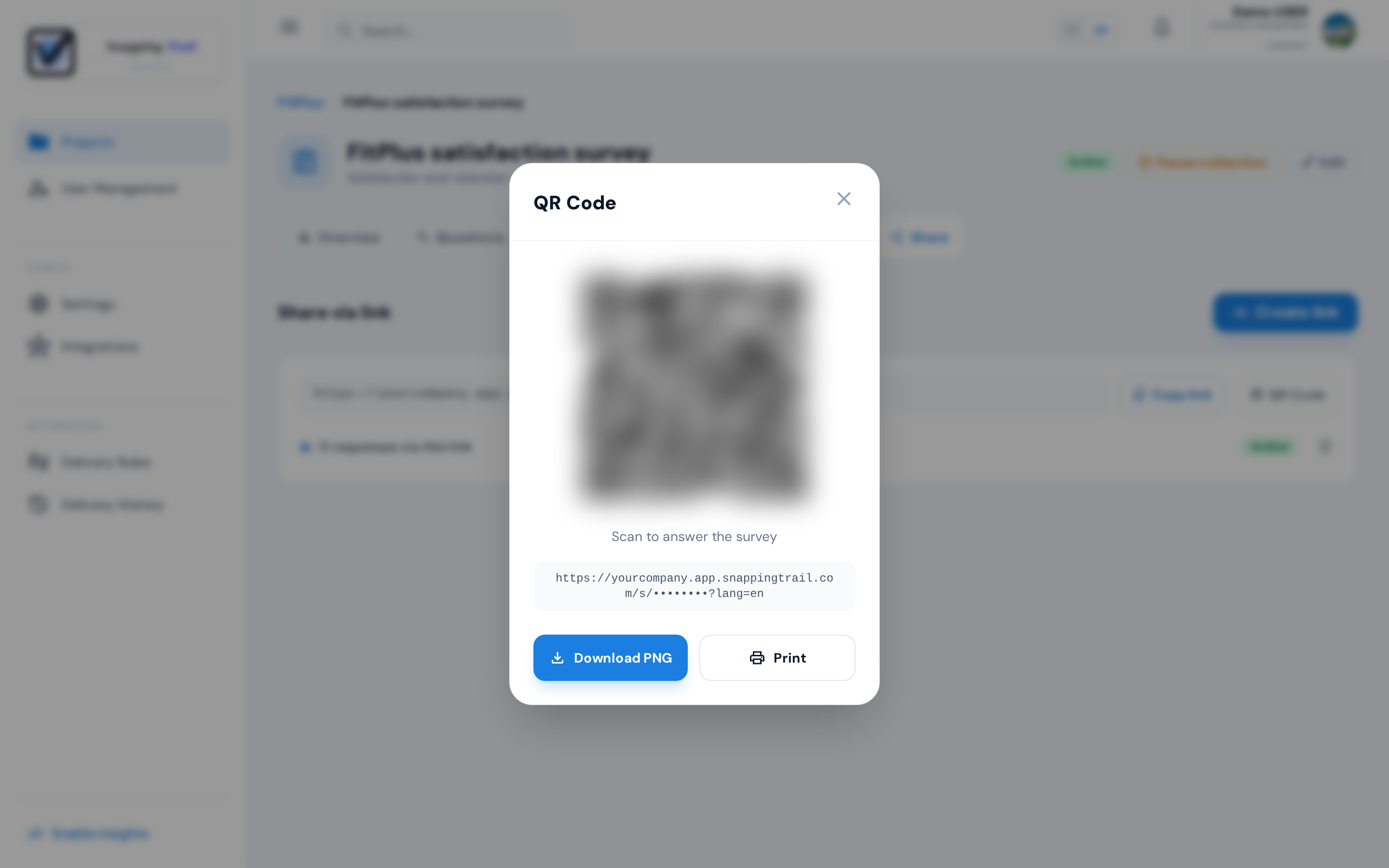
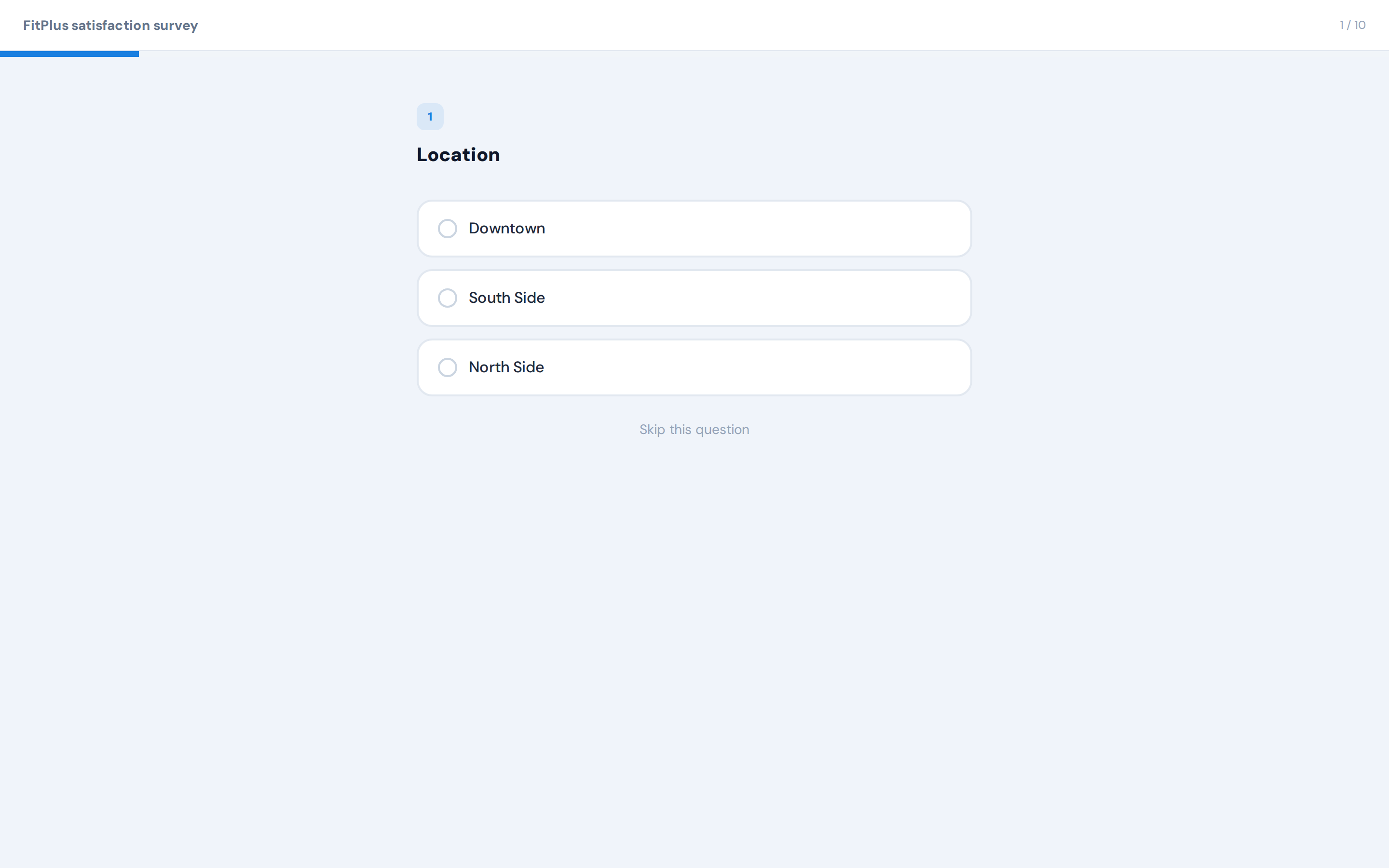
Anyone with the link can answer. The link opens in the language you were using in the app when you copied it, and the respondent cannot switch it. Only the screens change language: the questions appear as you wrote them.
Each link shows its status: Active, Disabled or Expired.
When a link can't take answers
The respondent sees Survey not available and one of these messages:
| Situation | Message |
|---|---|
| The link expired or was disabled | This link was disabled or has expired. |
| The survey is paused, or your plan's allowance stopped link collection | This survey is not receiving responses. |
| The survey reached its response limit | This survey has reached its response limit. |
| The link reached its own response limit | This link has reached its response limit. |
A pause, a limit or the allowance only stops new interviews: someone already answering can finish. A link that expires or is disabled, though, stops taking answers at once, even from someone halfway through.
Collect on the web
Interviewers find their surveys under My Surveys, choose Start on an available survey, and fill in the answers as the respondent speaks. When the interview is done, they can start a New interview in this survey or Choose another survey.
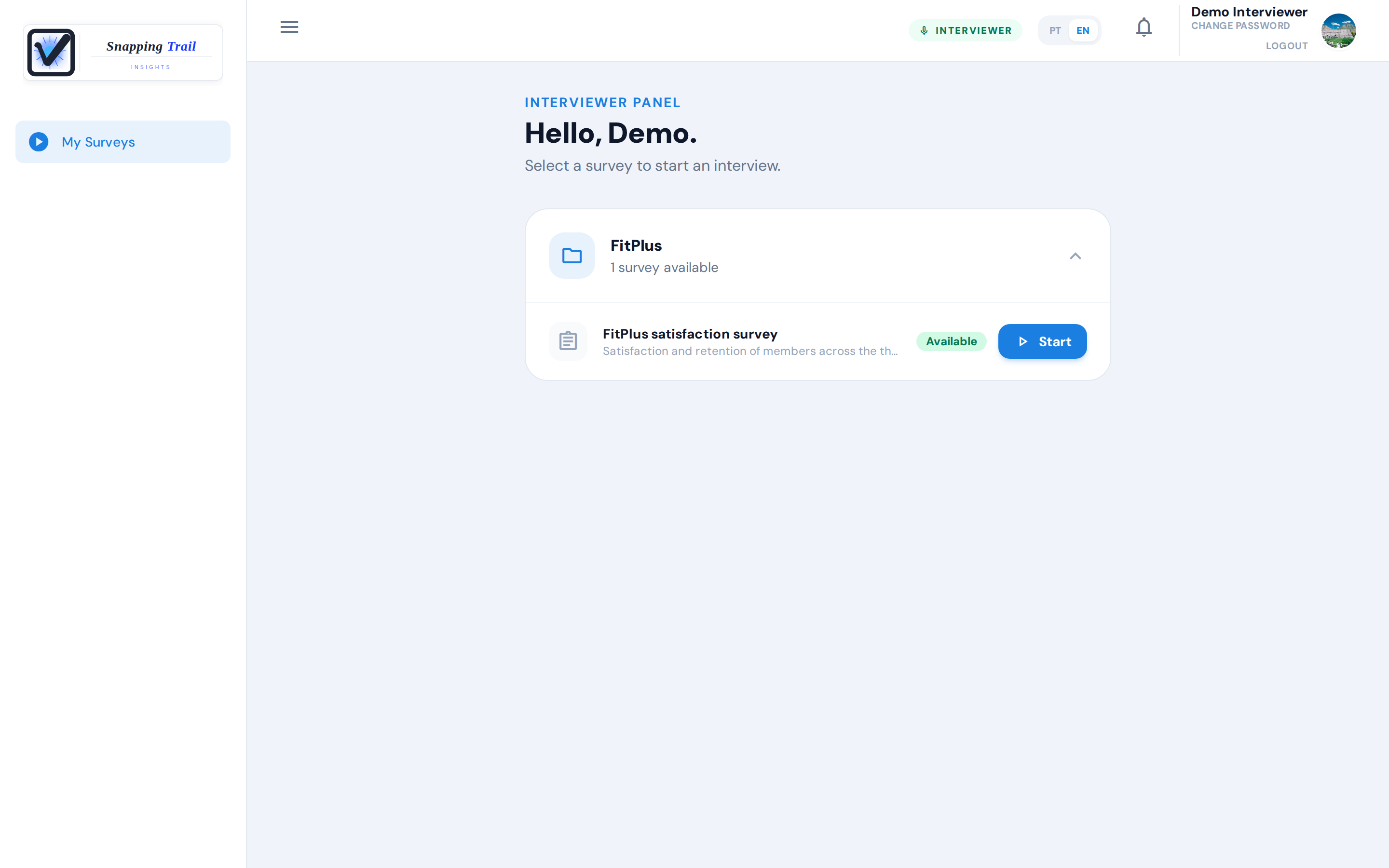
Administrators can also interview: in the survey, go to Interviews and choose Start Interview.
Set your goals
When you create a survey, three numbers help you plan the collection. They can only be changed while the survey is a draft.
- How many responses do you expect? A goal, shown as Target Responses. It limits nothing; the completion percentage is measured against it.
- Minimum for analysis (30 unless you change it): below it, the automatic analyses of a research objective and the sample reached event that delivery rules can react to wait for more answers.
- Survey response limit (optional; left empty, there is none): it counts the completed interviews from every channel. When it is reached, links and web collection stop starting new interviews. Interviews from the Collect app are still accepted.
Your plan's allowance
Every completed interview, from any channel, counts towards your plan's allowance: 100 on Free, 1,500 on Starter and 5,000 on Pro each month, and 200 for the whole trial.
Administrators are told by email at 80% and at 100%, and again the first time collection is refused. At 120%, links and web collection stop starting new interviews until the allowance starts over or your plan raises it. An interviewer then sees: "Link and web collection is suspended for this account. Contact your account administrator."
On Free, the allowance starts over on the first day of each month; on a paid plan, on the same day of the month your subscription started.
Interviews from the Collect app are always accepted, beyond the response limits and the allowance, so fieldwork is never lost. The survey still has to be active.