Surveys
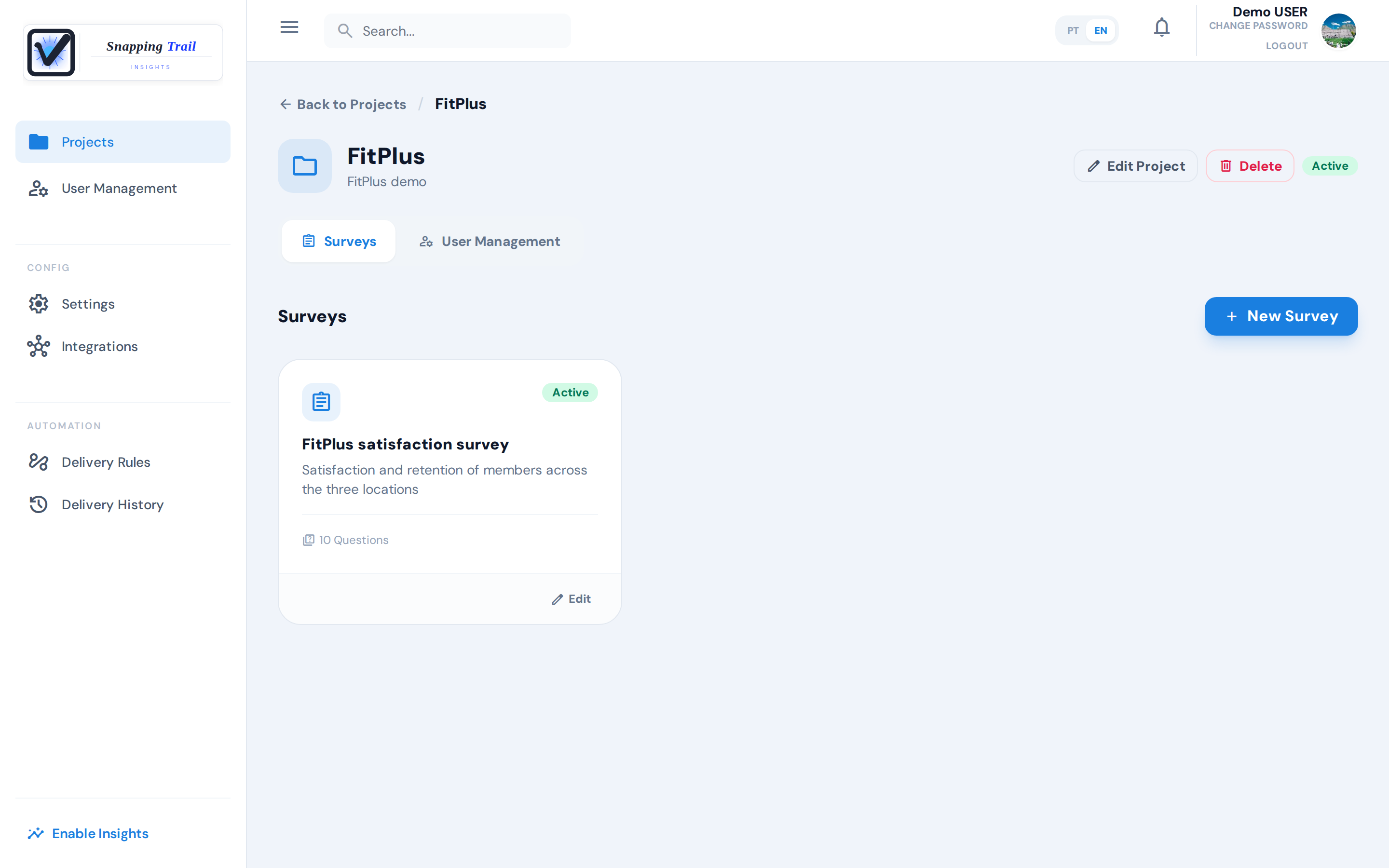
A survey is the questionnaire your respondents answer. Surveys live inside a project, and a project can hold several surveys about the same subject.
Only administrators create and edit surveys. Interviewers see the active surveys of their projects under My Surveys.
Create a survey
- Open Projects and choose a project.
- Choose New Survey. Give it a Survey Title and, if you want, a Description, then choose Create Survey.
- Add questions with Text, Choice or Rating.
A new survey starts as a draft. Save keeps your work; Publish makes the survey active.
Question types
| Type | What it measures |
|---|---|
| Text | A free answer in the respondent's own words: an opinion, a reason, a comment. |
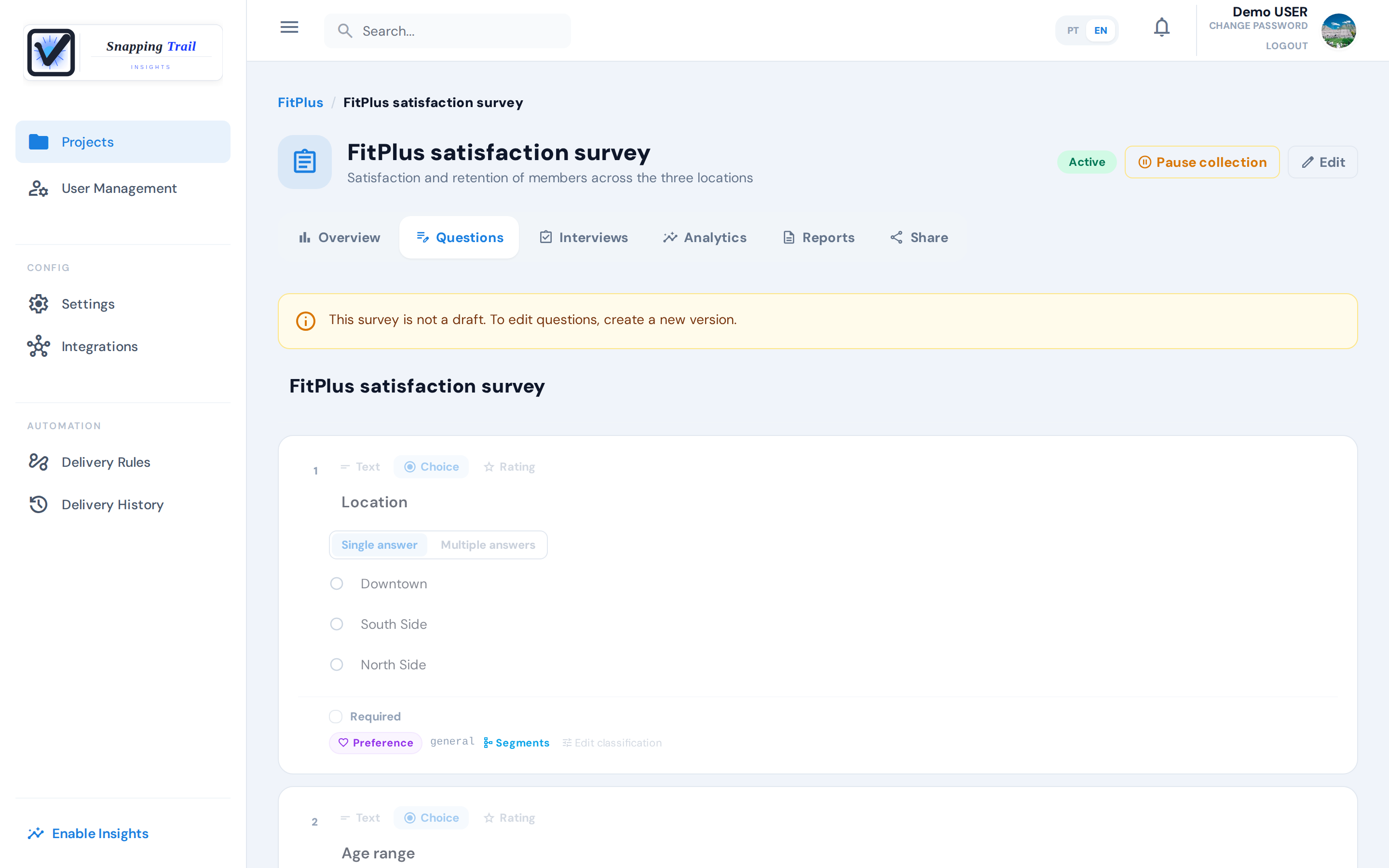
| Choice, with Single answer | One option out of a list, such as the location or the plan. |
| Choice, with Multiple answers | Every option that applies, such as the services someone uses. |
| Yes/No | A plain yes or no. The shortcut fills in the options Yes and No. |
| Likert | Agreement with a statement. The shortcut fills in five options, from "Strongly disagree" to "Strongly agree". |
| Rating | A score on a scale, under Answer scale. |
For a Rating question, pick one of the presets or set your own scale:
| Preset | Scale | What it measures |
|---|---|---|
| NPS | 0 to 10 | How likely someone is to recommend you |
| CSAT | 1 to 5 | How satisfied someone is |
| CES | 1 to 7 | How easy something was to do |
| Custom | Your Minimum, Maximum and Step | Any other score |
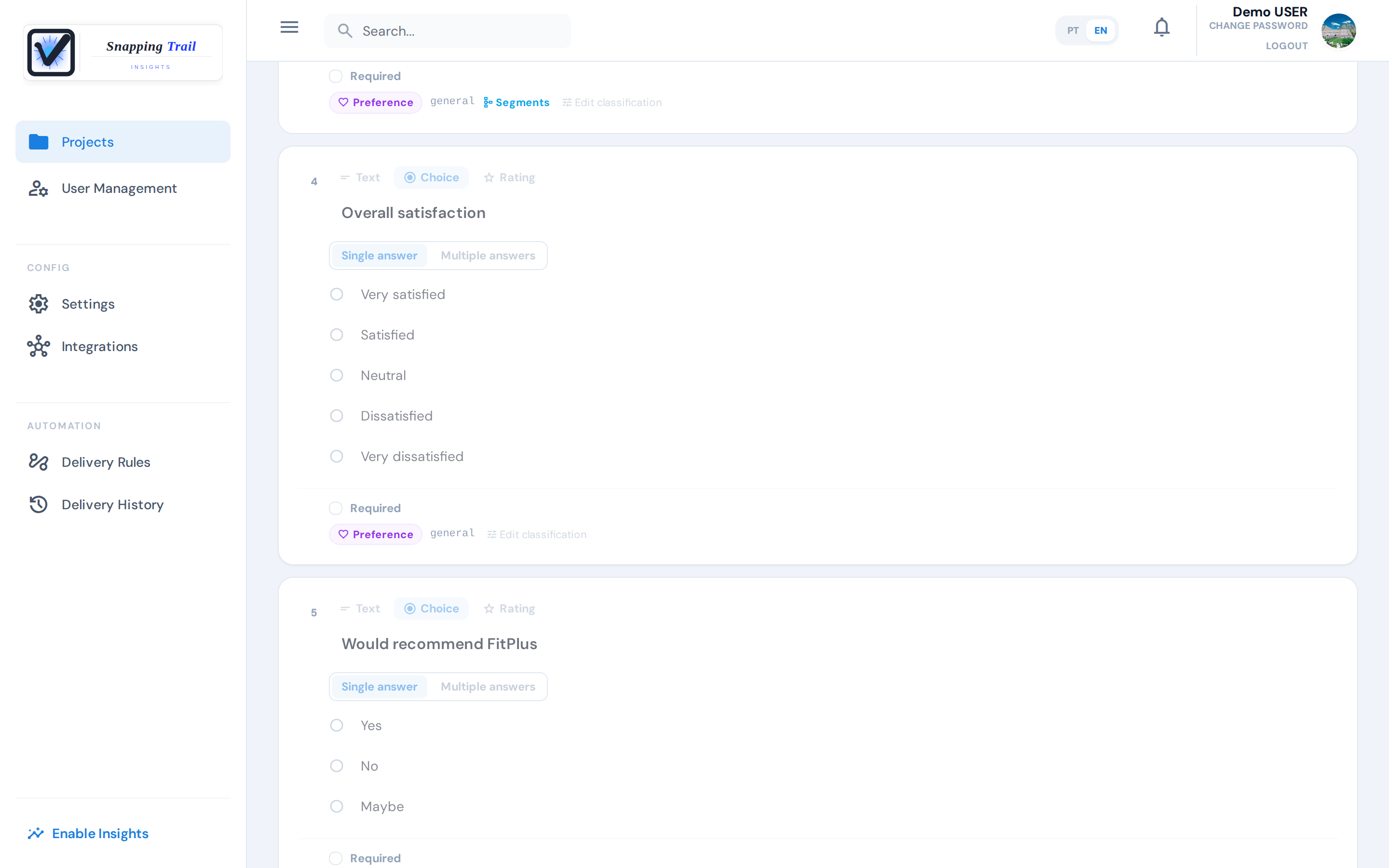
Tick Required when every completed interview must answer the question. The answer is checked when the interview is completed, and only for the questions the respondent was shown.
Follow-up questions
In any choice question (Single answer, Multiple answers, Yes/No or Likert), each option can open a follow-up question, shown only to those who chose that option. For example, "Main reason for dissatisfaction" can appear only to those who answered "Dissatisfied"; everyone else never sees it.
Next to the option, choose Follow-up and write the question. The follow-up is answered with free text. Tick Required when shown if those who see it must answer it.
Status
| Status | What it means |
|---|---|
| Draft | Being built. Nobody can answer it yet. |
| Active | Open for answers. A survey needs at least one question to become active. |
| Inactive | Closed for new interviews. Interviews already started can still be completed, and the answers are kept. |
| Archived | Out of the way, with everything it collected. It takes no answers. |
Pause collection turns an active survey inactive, and Resume collection opens it again. A paused survey stays in its objective's insights: pausing keeps what was collected.
Archive and restore a survey
Archive takes an active or inactive survey out of the way without deleting anything. The app asks first. Once archived, the survey:
- takes no answers, through a link, a QR code or the Collect app;
- leaves the lists, of the web app and of the Collect app (tick Show archived to see it again in the web app);
- no longer counts toward your plan's active surveys;
- leaves its objective's insights, signals and reports (see Results);
- keeps its answers, its own analysis and its reports;
- has its delivery rules turned off: the Integrations rules list says Off: the survey was archived.
Restore brings it back inactive. Resuming it then counts toward your plan's active surveys, like any resume. Its delivery rules stay off: turn on again the ones you want.
Only the account administrator archives and restores a survey. Archiving its objective archives it too.
Active surveys and your plan
Each plan allows a number of active surveys at a time (inactive and archived ones do not count): 2 on Free, 30 on Starter, and no limit on Pro (and during the trial). When your company already has that many, publishing a draft or resuming a paused survey is refused, and the app says, for example:
The Free plan allows up to 2 active surveys at a time. Pause another survey, or upgrade to Starter, to activate this one.
Surveys that are already active stay active, even after a change to a smaller plan: only the next activation is refused.
Change a survey that is no longer a draft
Once a survey leaves the draft, its questions can no longer change: the builder shows them read-only. You can still change the title and the description.
To change the questions, choose New version. It creates a new draft with a copy of the questions, which you edit and then publish. The earlier survey keeps its answers.
Delete a survey
Only a draft with no answers can be deleted, and it is deleted for good. A survey that has been active is not deleted: pause its collection, or archive it to take it out of the way.