Collecting responses
4.1 Choosing a project and a survey
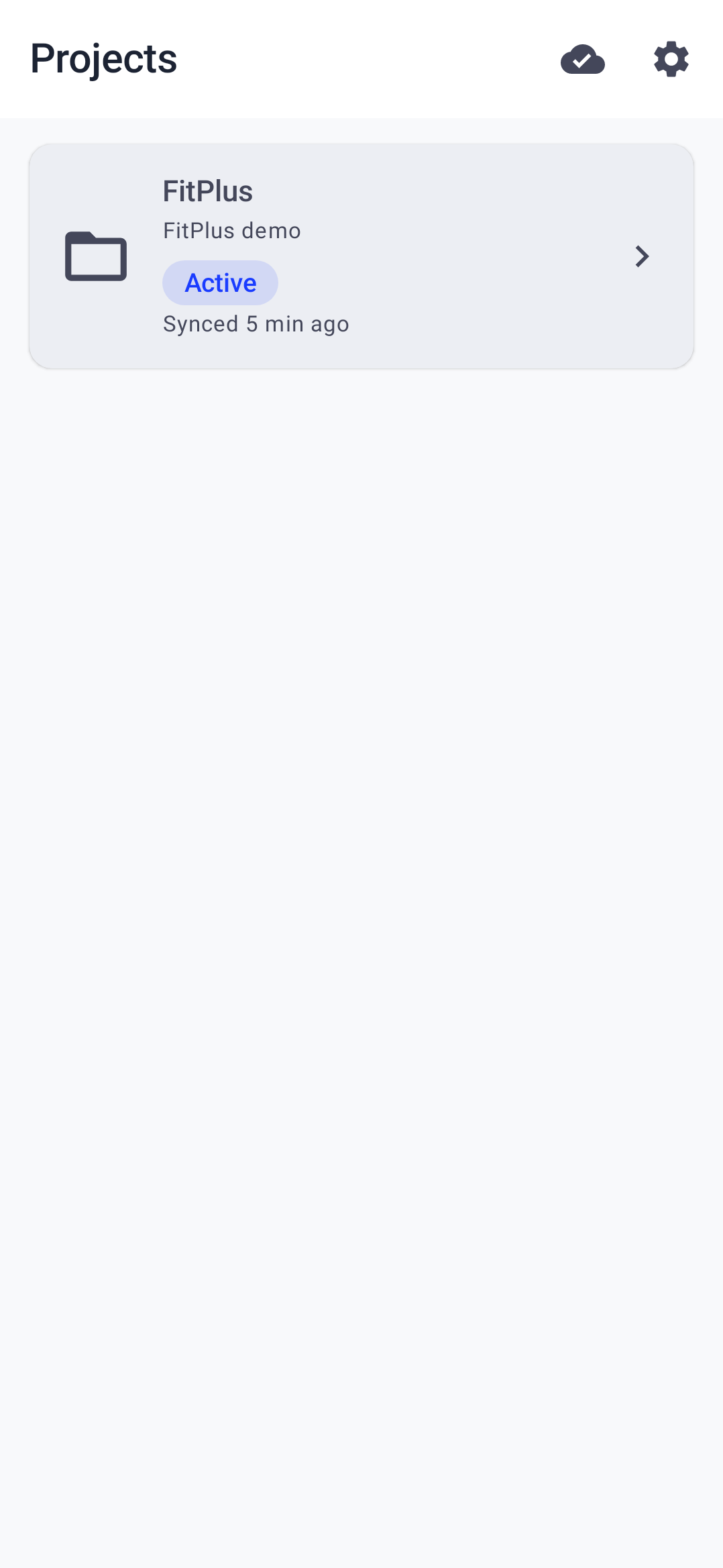
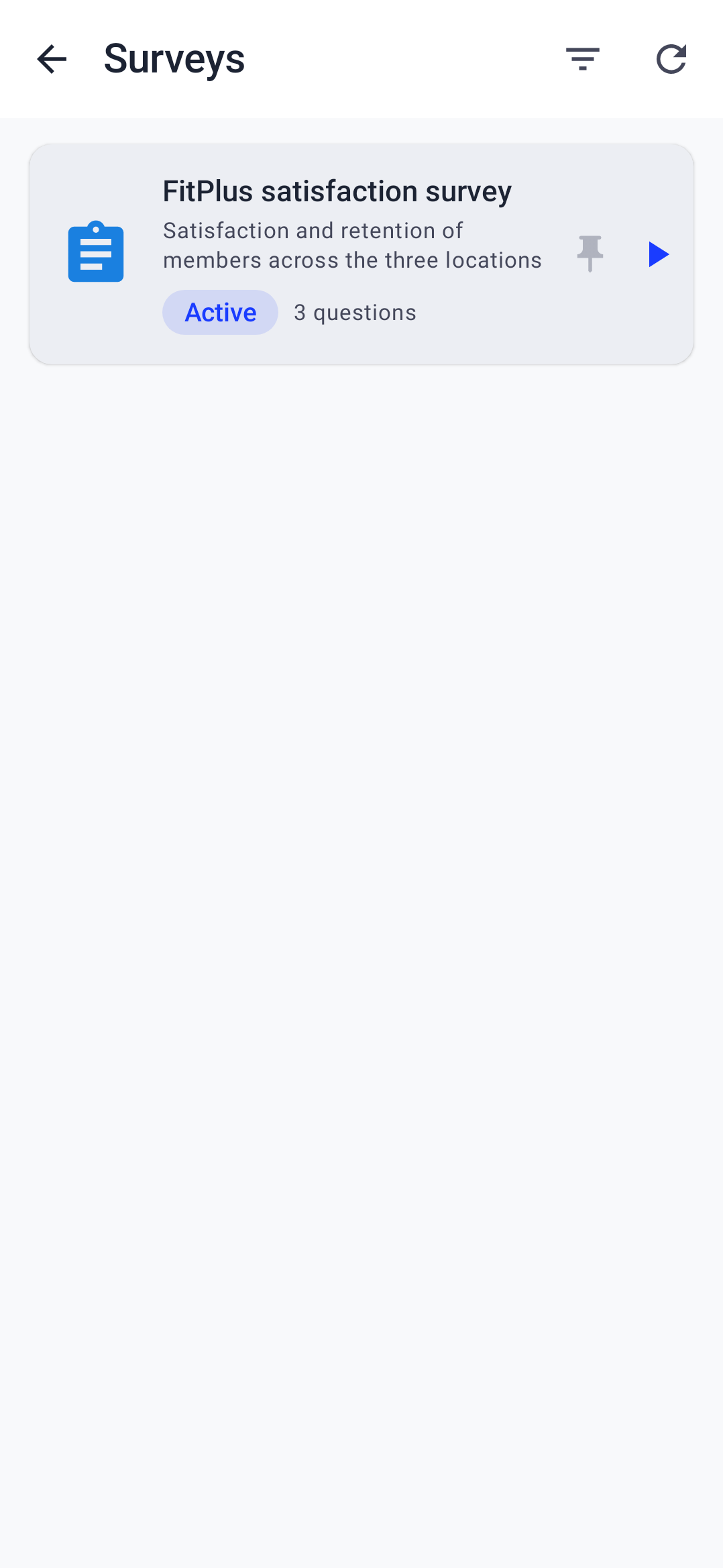
The Projects list shows the active projects you take part in. Tap one, then tap the survey you will apply.
4.2 Answering questions
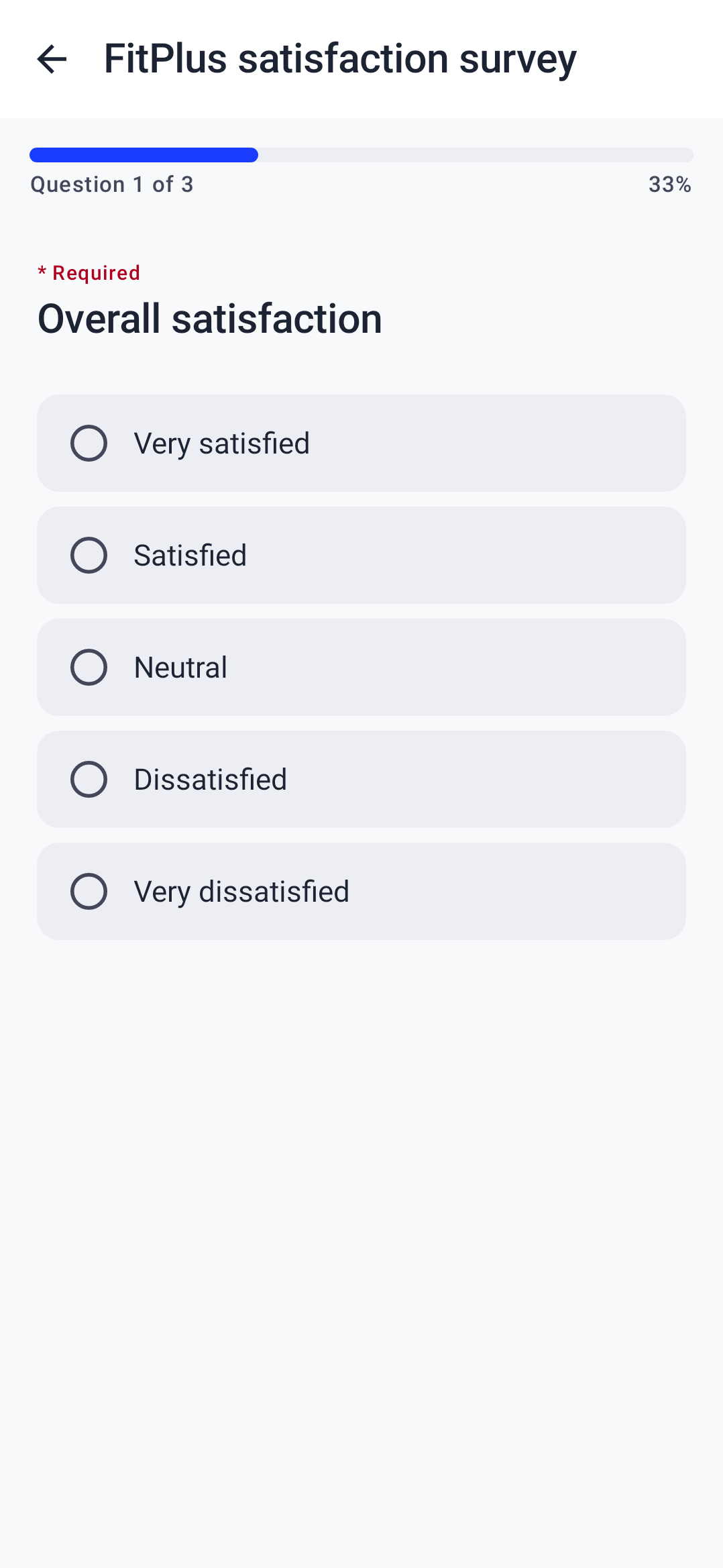
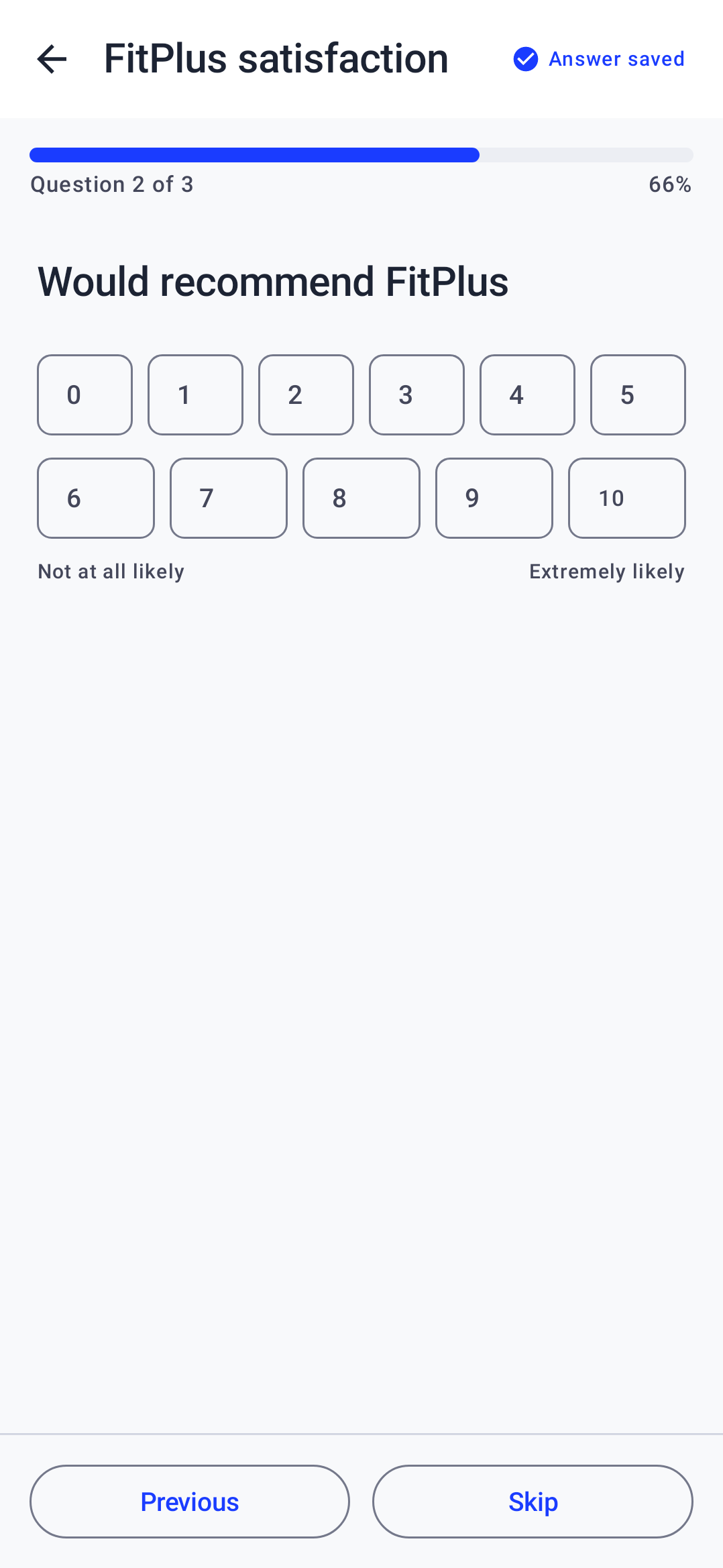
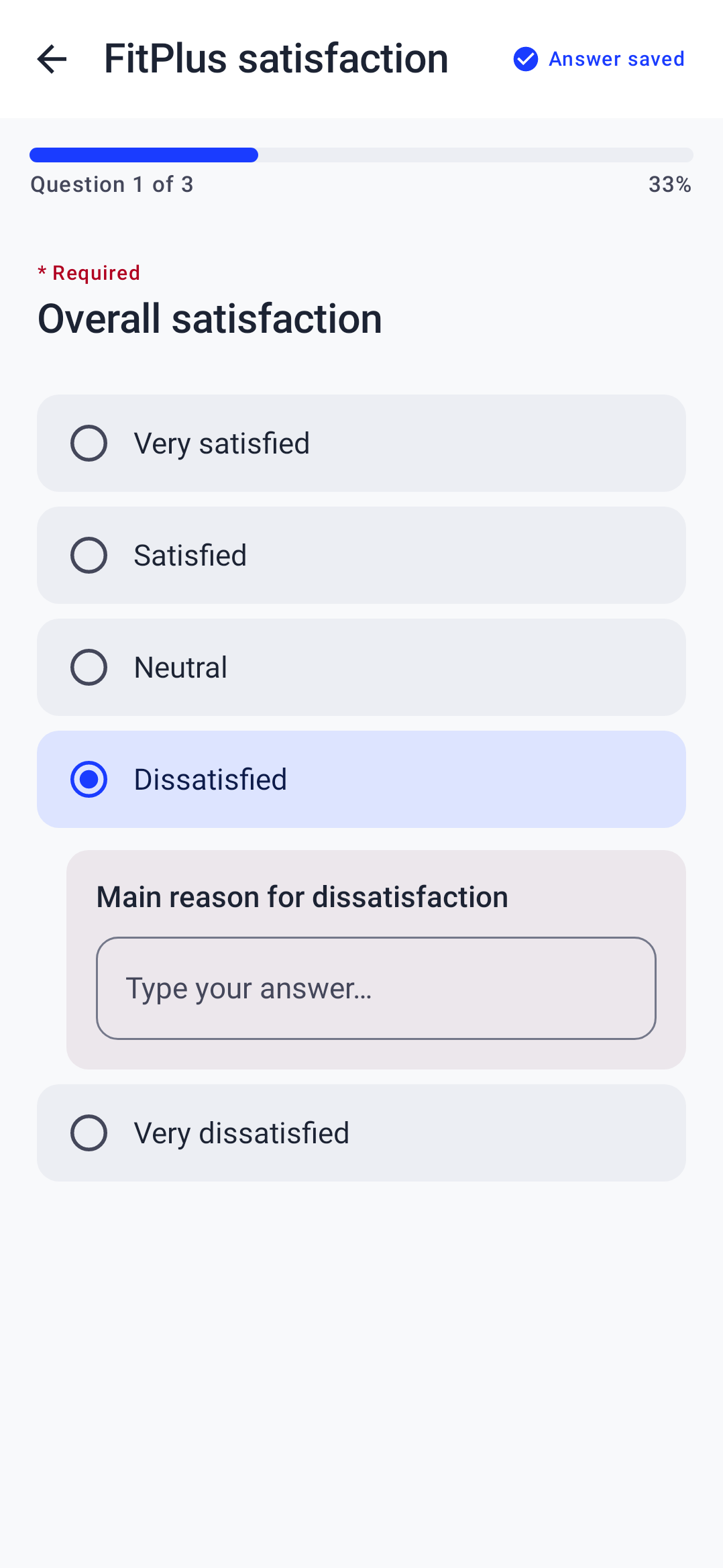
The screen shows Question X of Y and saves each answer as you go (Answer saved): you never need to save by hand.
- A single choice, a Yes/No, a dropdown and a rating (including NPS, 0 to 10) move to the next question by themselves once you choose. If such a question is optional, Skip moves on without an answer.
- A multiple choice, a text or a number have Previous and Next.
- A question marked * Required must be answered: until it is, Next says "This field is required".
4.3 Follow-up questions
Some options open a follow-up question right under them: for example, "Main reason for dissatisfaction" appears when the respondent chooses "Dissatisfied". If the respondent changes the option, the follow-up and its answer go away.
4.4 Finishing the interview
On the last question, tap Submit. The app says what happened:
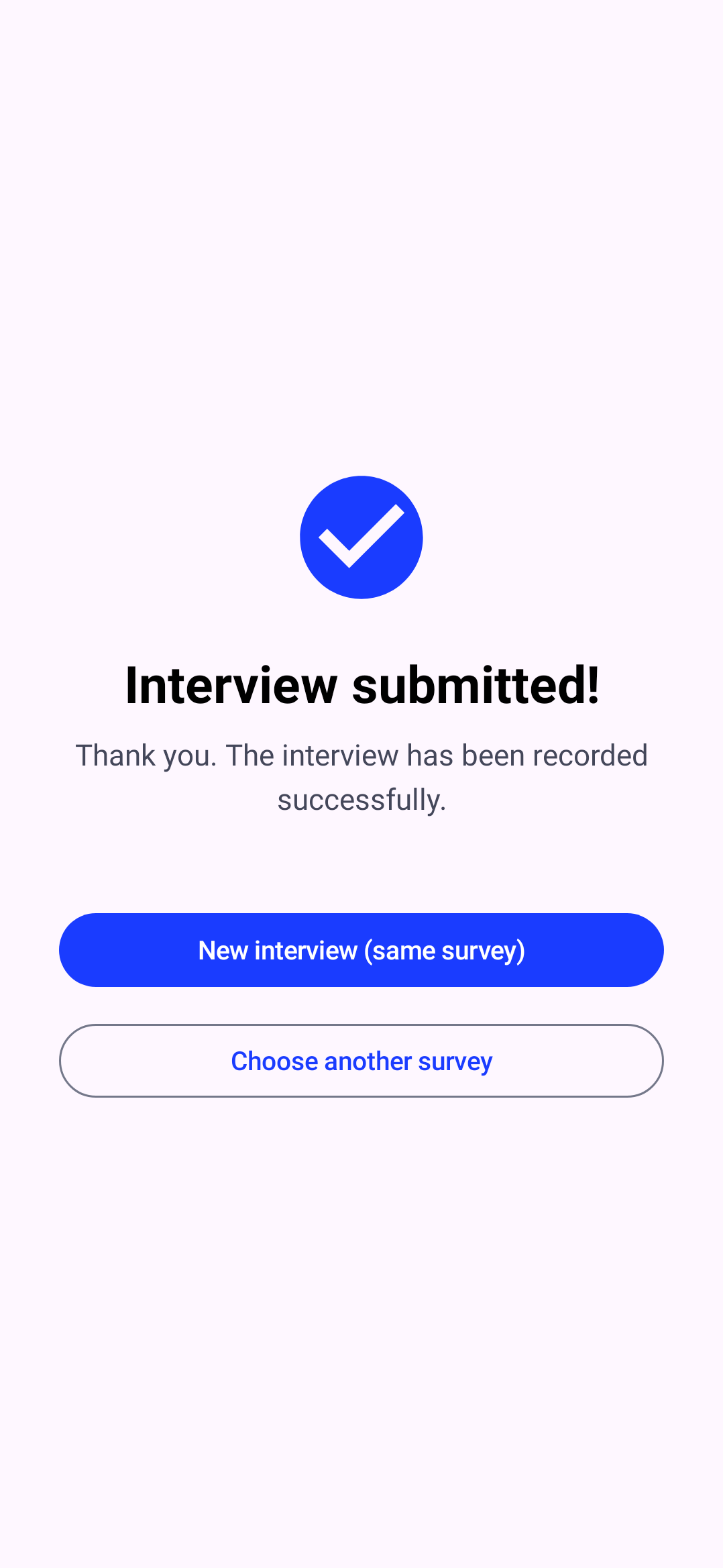
- Interview submitted! The server has received it.
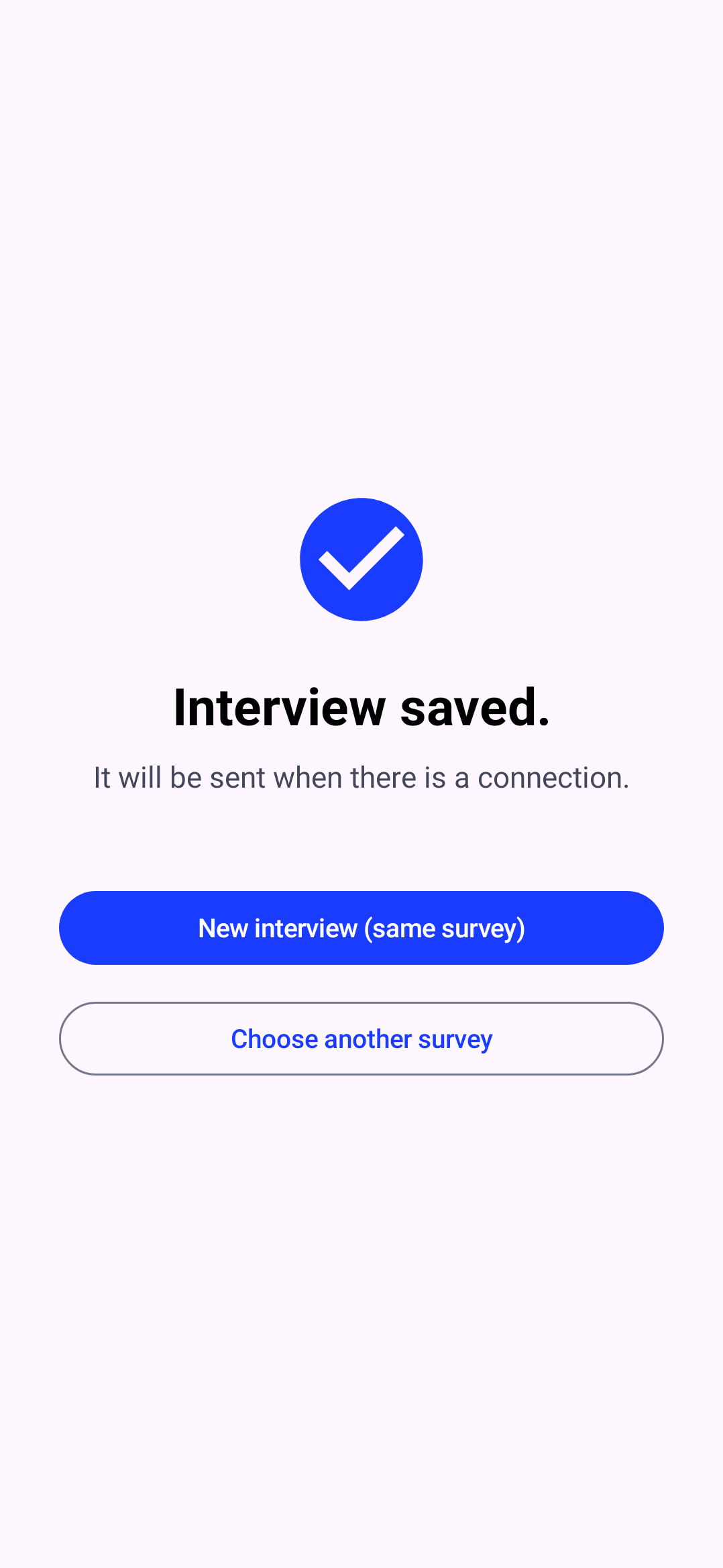
- Interview saved. "It will be sent when there is a connection." It is kept on the device and goes out by itself as soon as there is a connection (see Sending interviews).
Then choose New interview (same survey) or Choose another survey.
4.5 Resuming an interrupted interview
If an interview is interrupted (a call, the app closed, the respondent had to leave), its answers are already saved. The Projects screen shows Continue last interview: tap it to pick up where you left off. Opening the same survey again also resumes it.