First access — setting up the app
3.1 The sign-in screen
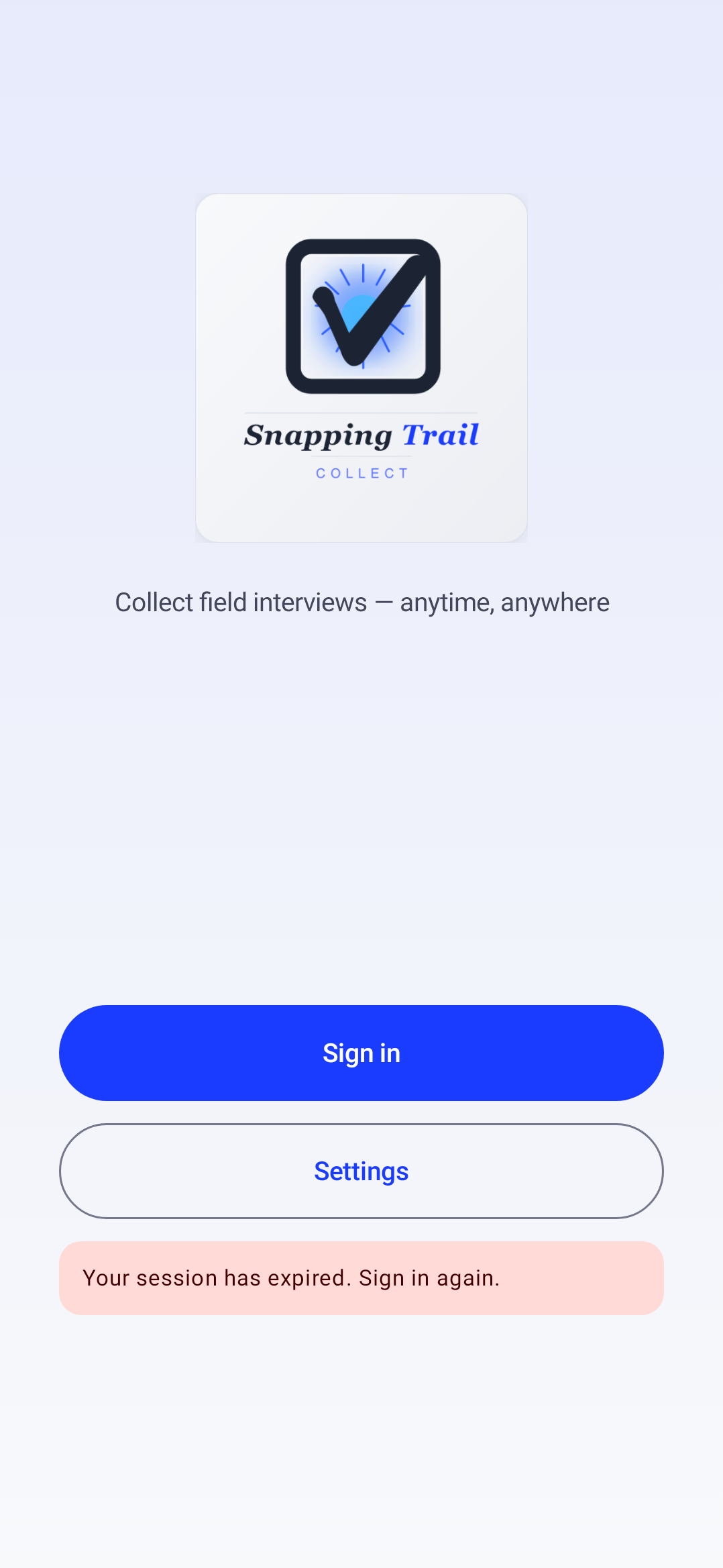
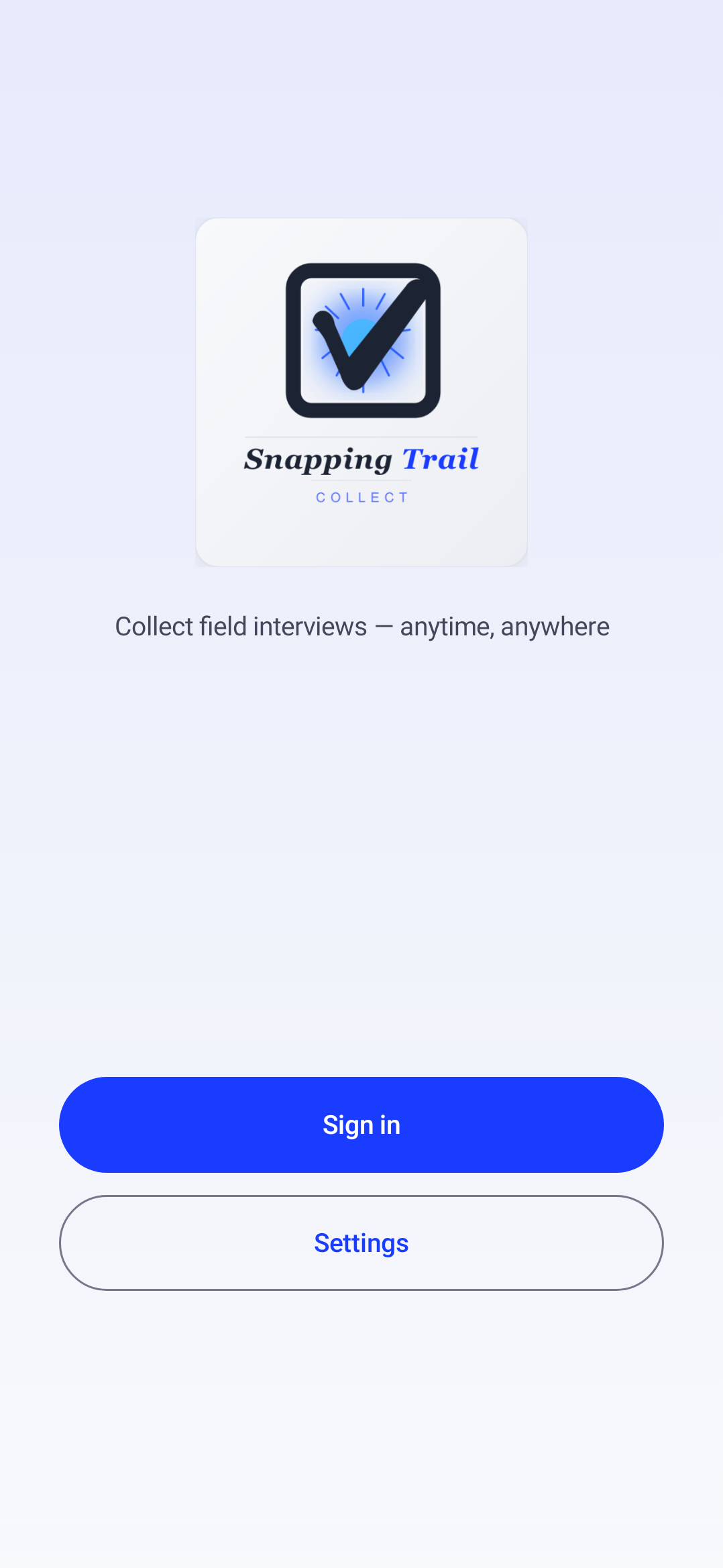
The app opens on the sign-in screen, with Sign in and Settings. Without a connection, Sign in is disabled and the app says: "No internet connection. Connect to sign in."
3.2 Entering the company code
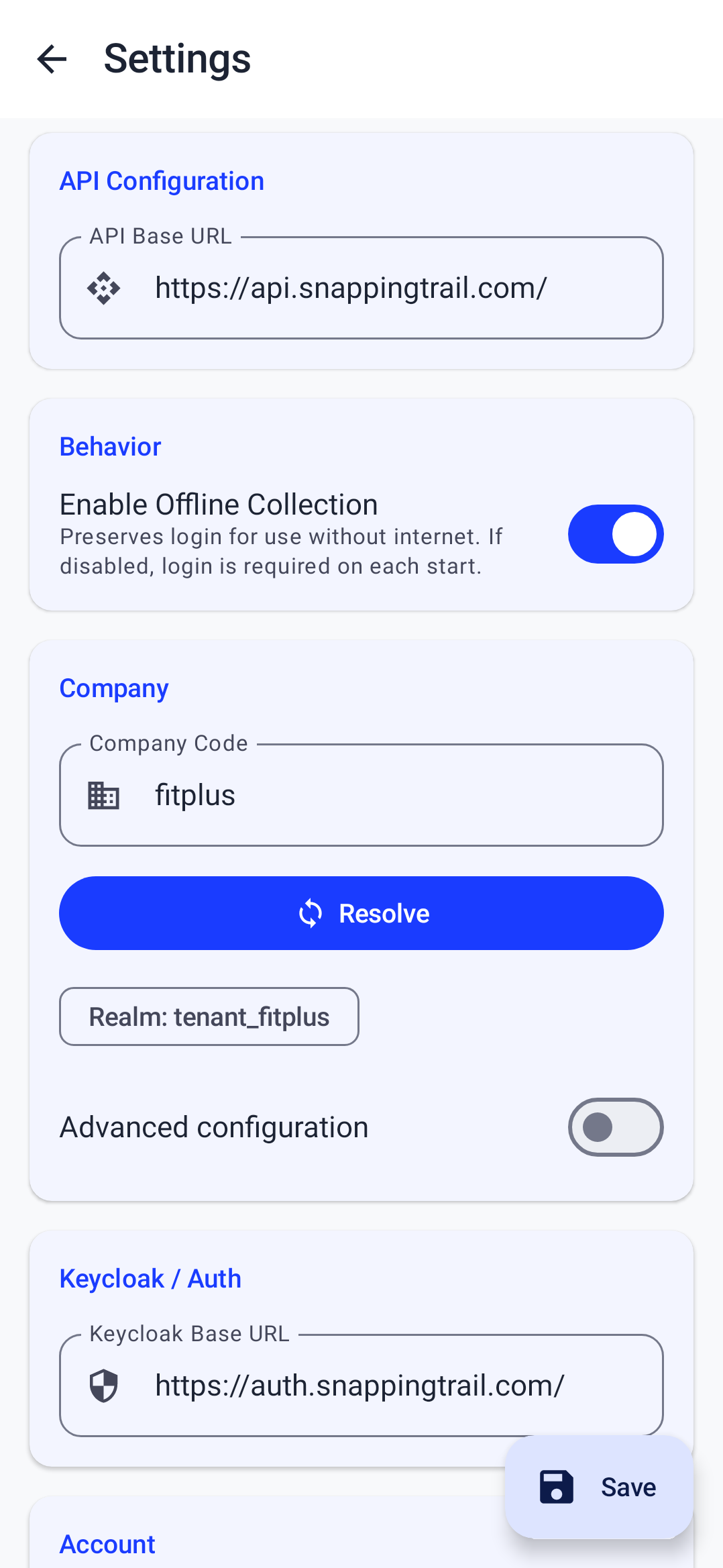
Tap Settings. Under Company, type the code your company gave you in Company Code, for example acme.
If your company is testing the system in a separate environment, the code may come with a suffix, such as acme@dev or acme@hml. Type it exactly as given: the app sets the servers from it.
3.3 Validating the code
The app checks the code by itself a moment after you stop typing; you can also tap Resolve. When the company is found, the screen shows its Realm and its Locale, and the app may switch to the company's language. If it is not found, the app says so: check the code and the connection.
3.4 Saving and signing in
Tap Save ("Settings saved") and go back to the sign-in screen with the back arrow. Tap Sign in: the sign-in page opens in the device's browser. Sign in there.
The app only accepts an account of the company you set. With an account of another company, it says: "Your account does not belong to the configured company (acme)." and does not sign you in.
Once signed in, the app downloads your projects and surveys and shows the Projects list.
3.5 When your session expires
If your session ends while the app is in use, the app takes you back to the sign-in screen and says: "Your session has expired. Sign in again." Your interviews waiting to be sent stay on the device.